Send meeting bots and change their settings
Make named meeting bots for yourself, a team or a project, send one to a Google Meet or Microsoft Teams call, and choose its name, its notes and when it leaves. Anyone in the call can type SaysHere stop to end every SaysHere bot in it.
On this page
What you need. A SaysHere account. In a team, the Owner and Admins make and change the team's bots, and Members send them while the team allows it.
The bots list
The Bot place opens the list. In a team it groups the bots: Yours, the team's bots under its name, one group for each project you see, and, for the Owner and Admins, Members' bots. Each row says Asks to join as and the name the bot asks to join as, with the meeting apps it joins. Used when no bot is chosen marks the bot a send uses when it names none. Archived lists the archived bots, and Restore brings one back while its group has room.
- 1
Open the Bot place.
Bots lists the bots you can see, with New bot when you can make one.
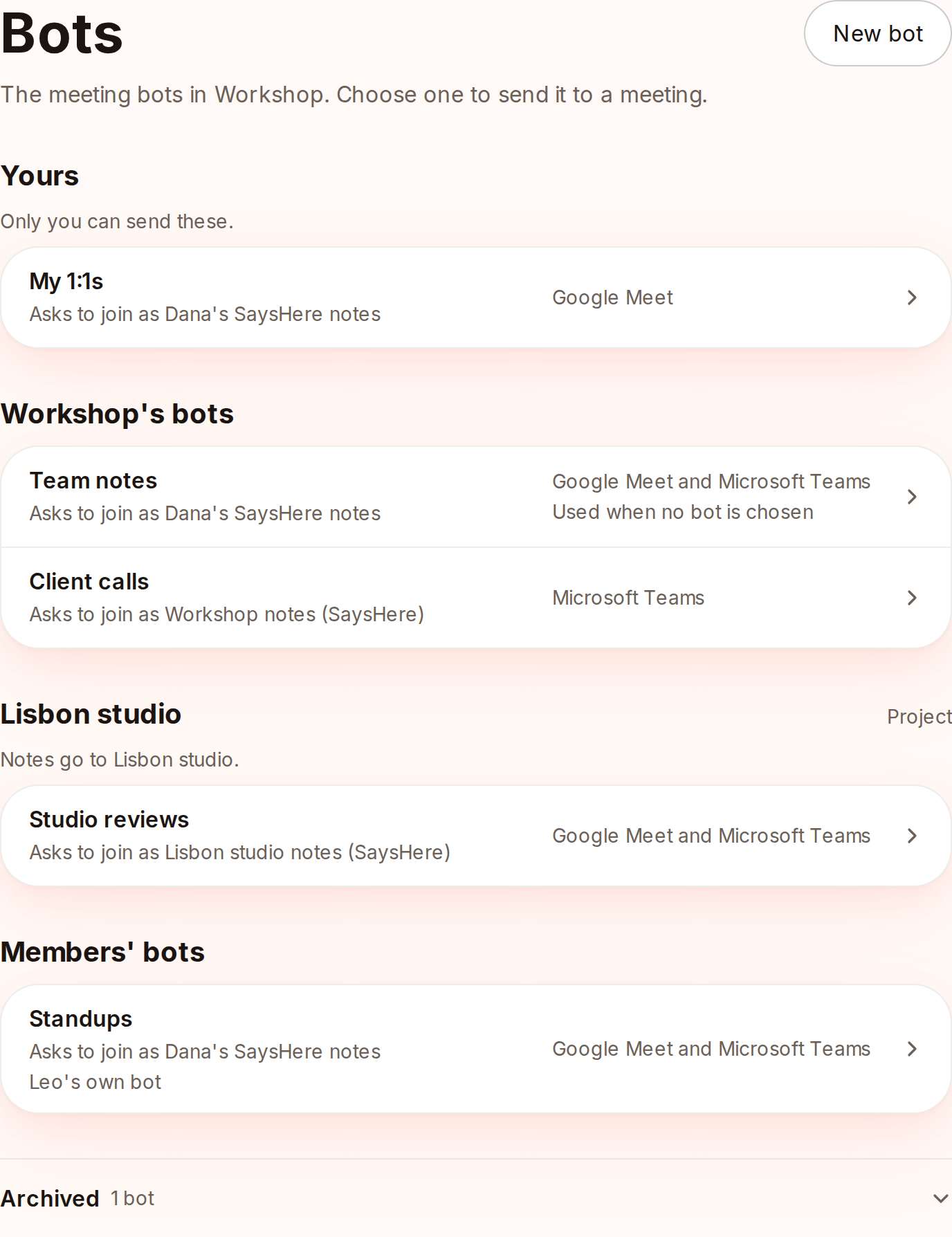
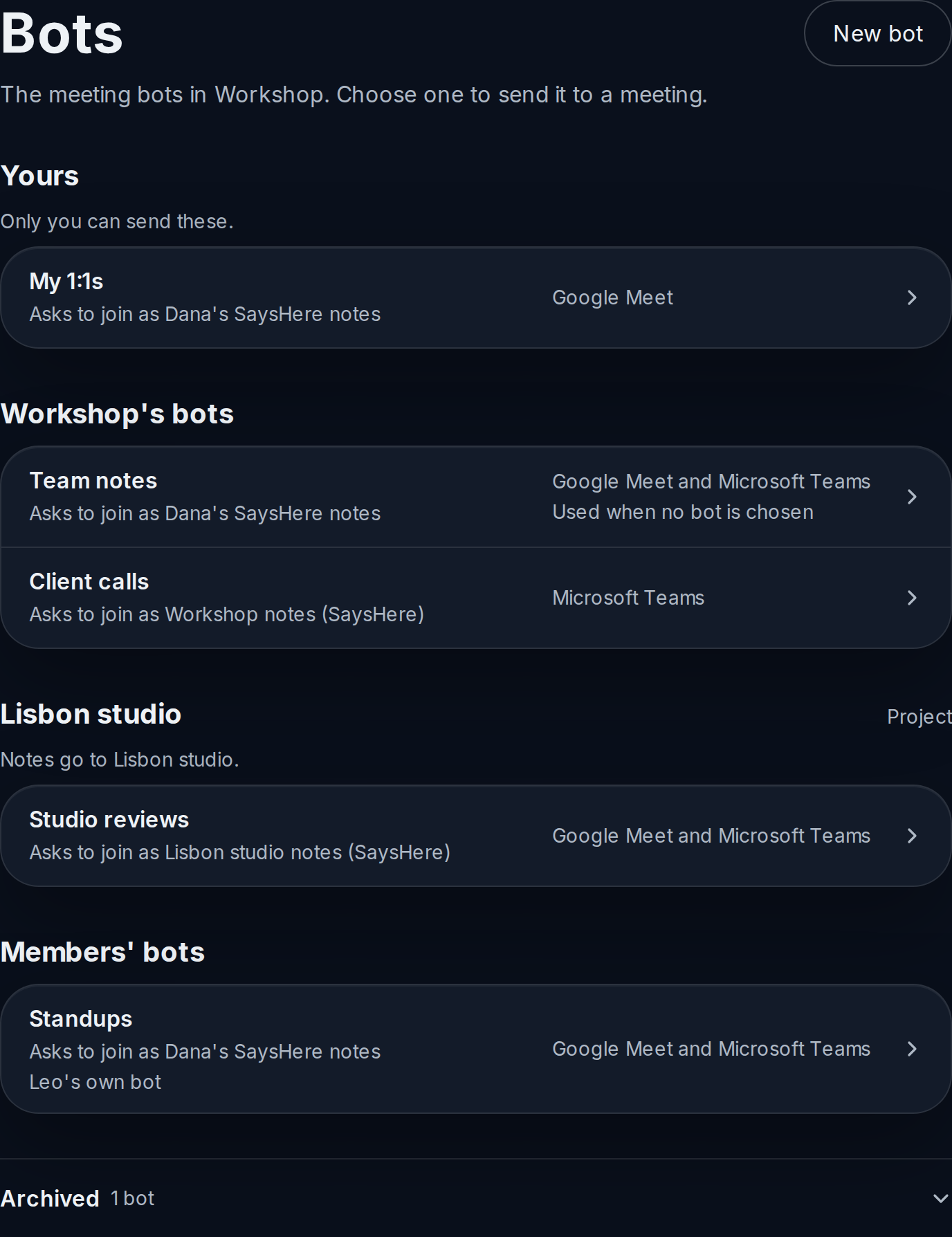
A team's bots list, with a project's bot and a member's own bot.Captured from the app on 4 November 2026.
- 1
Open the Bot place.
Bots lists the bots you can see, with New bot when you can make one.
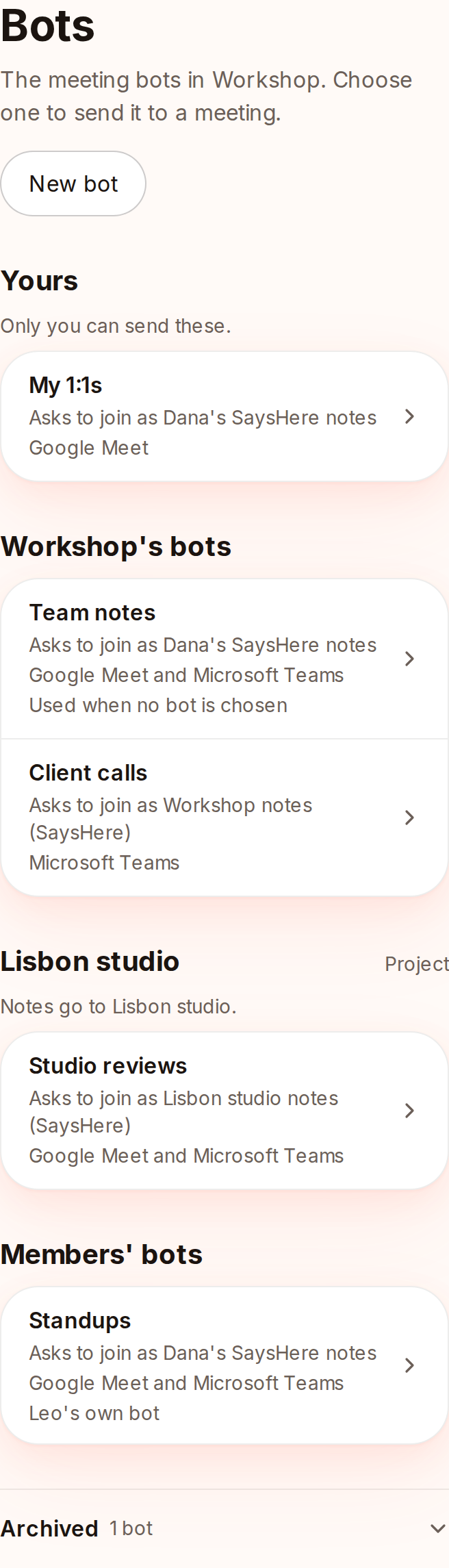
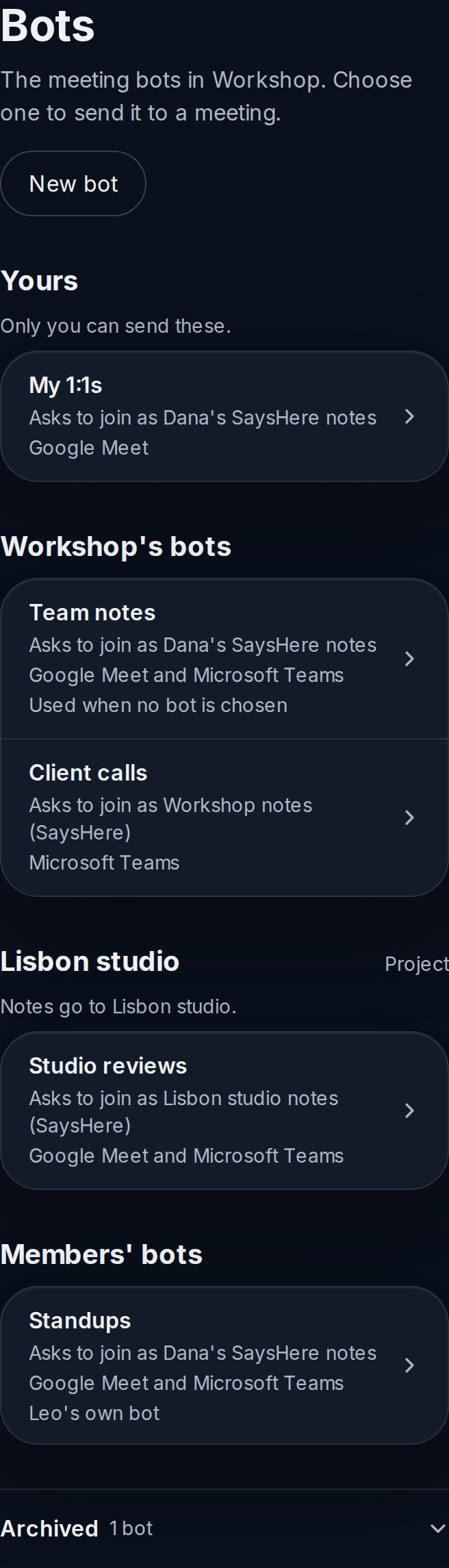
A team's bots list, with a project's bot and a member's own bot.Captured from the app on 4 November 2026.
Make a bot
Press New bot. Type its Name in SaysHere: Shown in the bots list, on its runs and on its notes. Up to 60 characters. It starts with the default settings. You can change each one on the bot's page.
In a team, the Owner and Admins choose under Where it belongs: the team itself, A project or Yours. A Member makes a bot while the team's Members can make their own bots is on: Yours, or A project for a project they made. Only you can send it and read its transcripts. The Owner and Admins see its settings. In your own workspace, the form asks only for the bot's name.
A workspace holds up to 25 team and project bots, and each member of a team up to 5 of their own besides; archived bots do not count. Press Create the bot, and the new bot opens on its settings.
Send a bot
A bot's page opens on Send, beside Settings and Time. Paste the call's address under Meeting link, choose Now or Later under When, and press Send the bot. A bot sent for later keeps its transcript in your account, since this page may be closed by then. On a project's bot the page says where the notes go, as in "Notes go to Lisbon studio."
The Owner and Admins send the team's and the projects' bots. A Member sends one while the team's Members can send the team's and projects' bots and the bot's Members can send this bot are both on, and a project's bot only as one of the project's people. A project's Owner sends its bots while the team's switch is on, and changes them. A member's own bot is sent by that member alone, whatever the team's switch says.
Up to 3 of a workspace's bots can be in meetings at once. Keep a Bot page open while it's in the call. Any page of the Bot place counts. A bot sent now leaves after a short wait when none is open, and its run says why; a bot sent for later does not leave for that.
- 1
Choose a bot in the list.
Its page opens on Send, with the form and the bot's runs under Under way and Ended.
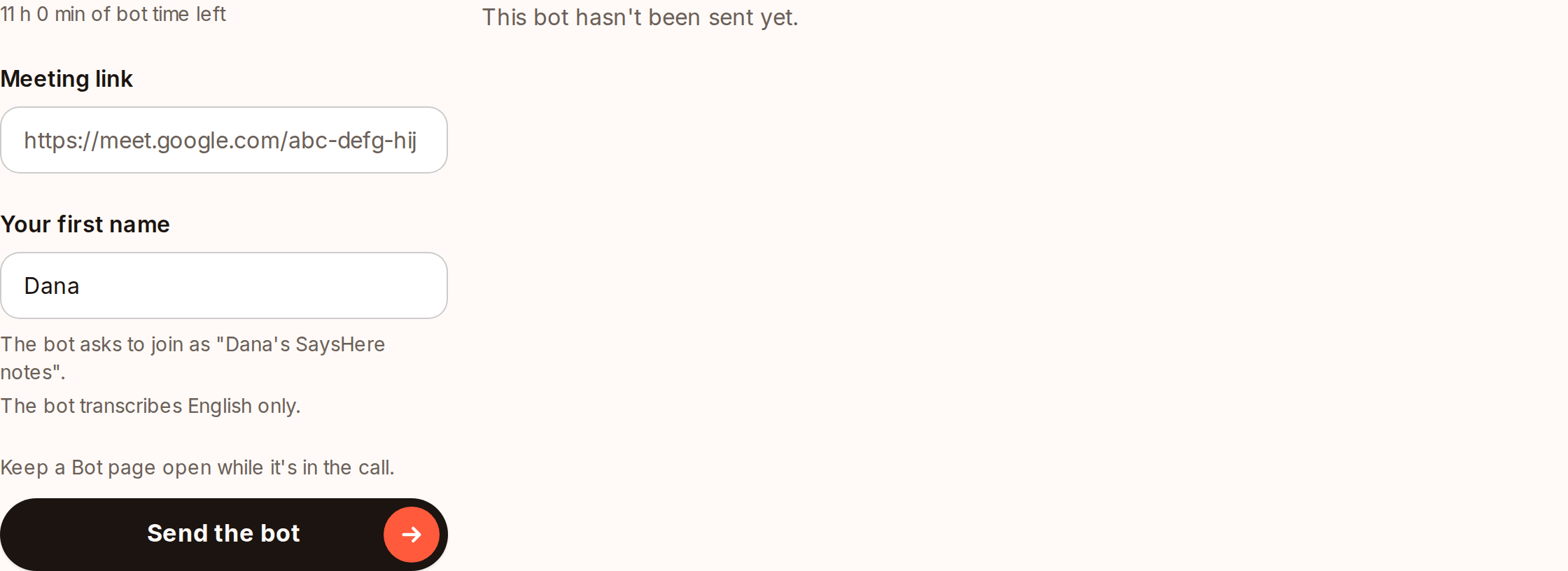
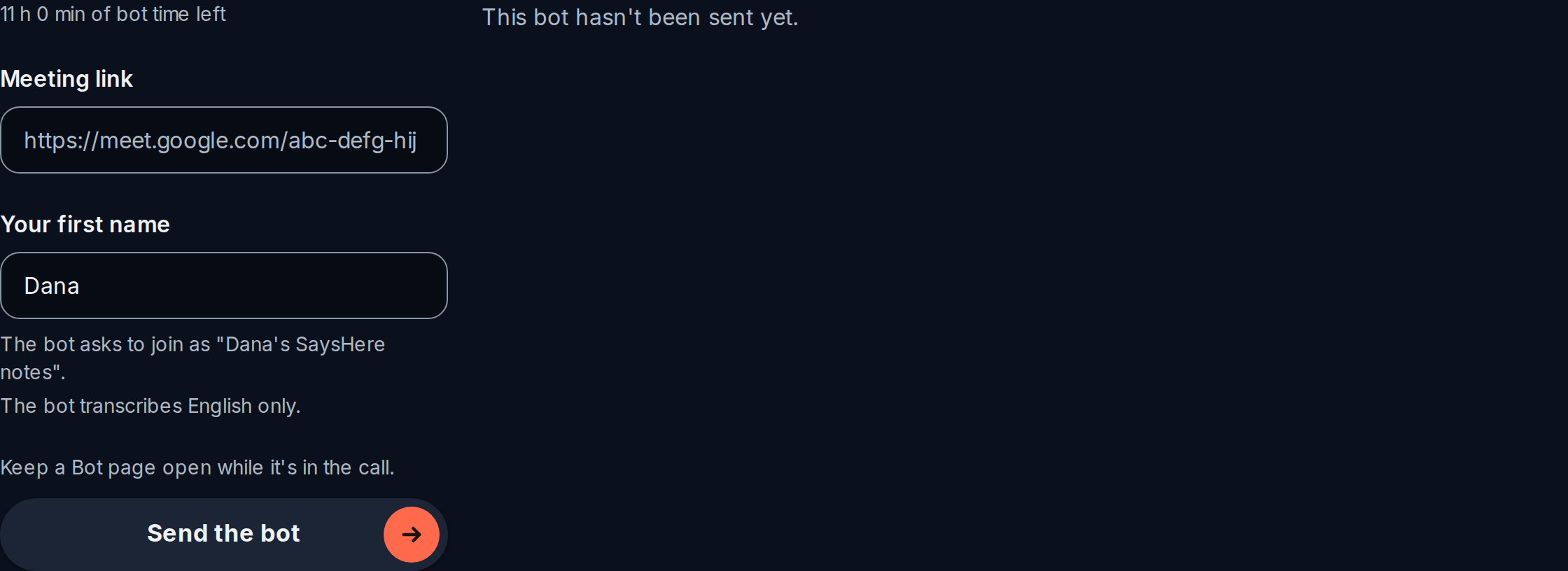
A team bot's Send tab.Captured from the app on 4 November 2026.
- 1
Choose a bot in the list.
Its page opens on Send, with the form and the bot's runs under Under way and Ended.
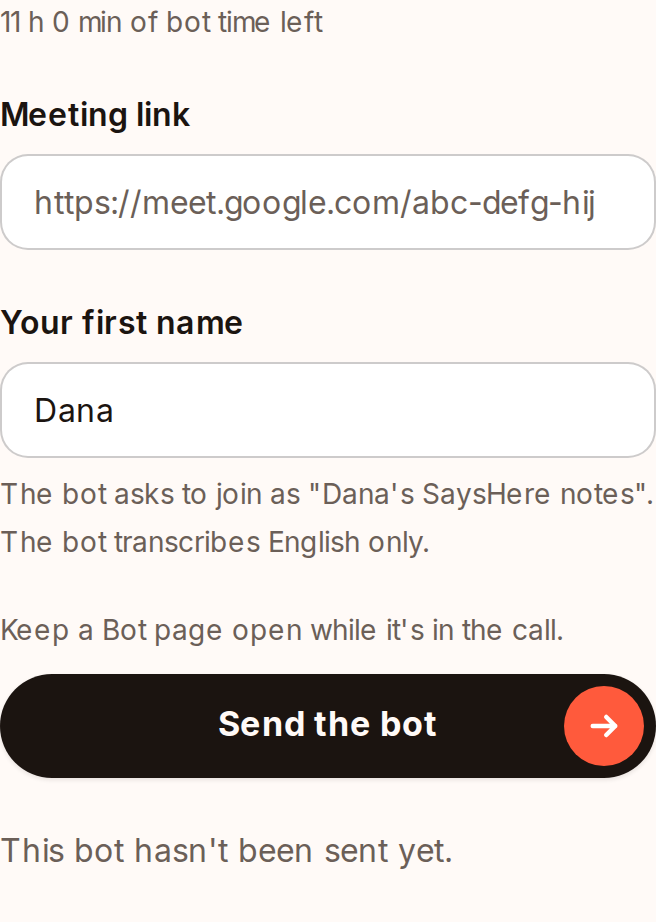
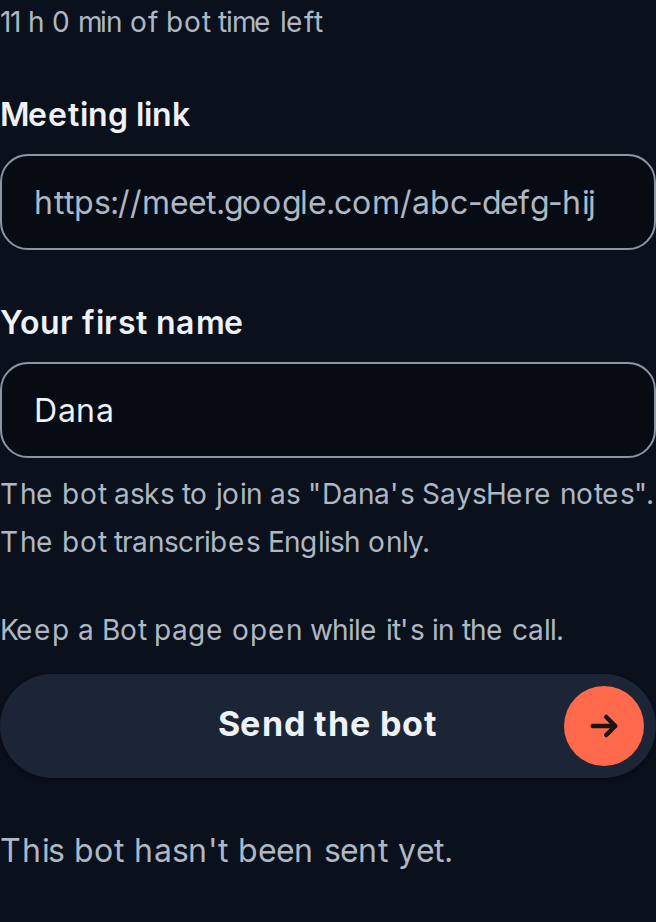
A team bot's Send tab.Captured from the app on 4 November 2026.
A bot's settings
Press Settings on a bot's page. The parts below follow the page's order, and each one saves as you change it.
Name in SaysHere
The bot's name in the list, on its runs and on its notes. Change it and press Save.
Name in meetings
Under How the bot is named, choose one of three rules. Named for the person who sends it asks to join as "Dana's SaysHere notes" when Dana sends it. Named for the team asks to join as "Workshop notes (SaysHere)" in the team Workshop. A name you choose takes your own words, up to 80 characters with (SaysHere) included, and adds (SaysHere) when they leave it out, as in "Lisbon studio notes (SaysHere)" or "Leo's standup notes (SaysHere)". In your own workspace, the first rule reads Named for you.
What each meeting app shows shows the name for each app the bot joins. Microsoft Teams: The bot asks to join under this name. Google Meet: Google Meet shows the name of the SaysHere account the bot signs in with. That account is picked when the bot joins, and this name doesn't rename it. Zoom: This connection posts an app notice and doesn't join as a named participant. The bot's notice in the meeting always names the person who sent it.
After the call
Keep the transcript or Keep nothing. The send form starts with this choice for a bot sent now. A bot sent for later keeps its transcript in the account, since the page may be closed by then.
What it writes
The sections of the notes the bot writes: Summary, Decisions, Action items and Open questions. At least one stays on. They are greyed while Keep nothing is chosen above, since notes are written only for runs kept in an account.
How it writes
Follows the workspace uses the workspace's How SaysHere writes. Its own writing starts from the workspace's choices and offers four controls, each with three bands: Warmth (Direct, Neutral or Supportive), Initiative (Keeps to what was said, Measured or Points out what the notes leave open), Rigour (Brief, Plain or Thorough) and Range (Only the proven, Sticks to the facts or Draws connections). Honesty and composure are fixed. Changes apply to what SaysHere writes next. What it already wrote stays as it is.
Where it joins
The meeting apps this bot joins. At least one stays on. For Google Meet: Invite this address to the meeting, or admit the bot from the waiting room. For Microsoft Teams: Admit the bot from the lobby.
When it leaves
Waiting room: It leaves if nobody admits it within this time. Up to 10 minutes. Alone in the call: It leaves once it has been alone this long. Up to 5 minutes. Longest stay: It leaves when a call has run this long. From 15 minutes to 4 hours.
Who can send it
Members can send this bot lets the team's Members send the bot while the team allows it. When it's off, only the Owner and Admins can send it. On a team bot, When no bot is chosen says which bot is used when a send names none, and Use this bot instead makes this one that bot. Only one of the team's own bots can be used when no bot is chosen.
At the foot, Archive this bot: It moves to Archived and can't be sent. Its runs and notes stay. The bot used when no bot is chosen can't be archived. To archive it, first open another team bot and press Use this bot instead.
- 1
Change a part, such as Name in meetings.
The pane says Saving, then Saved.
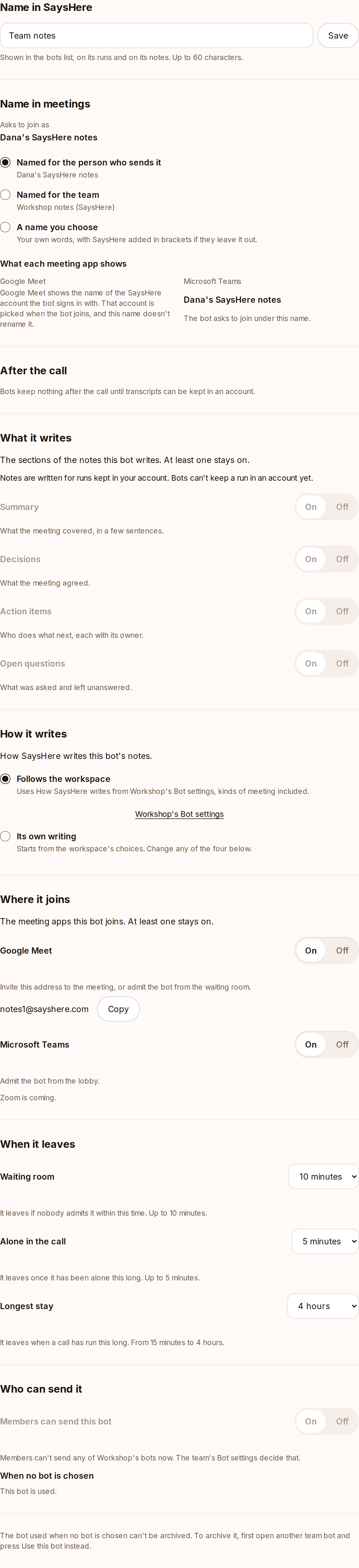
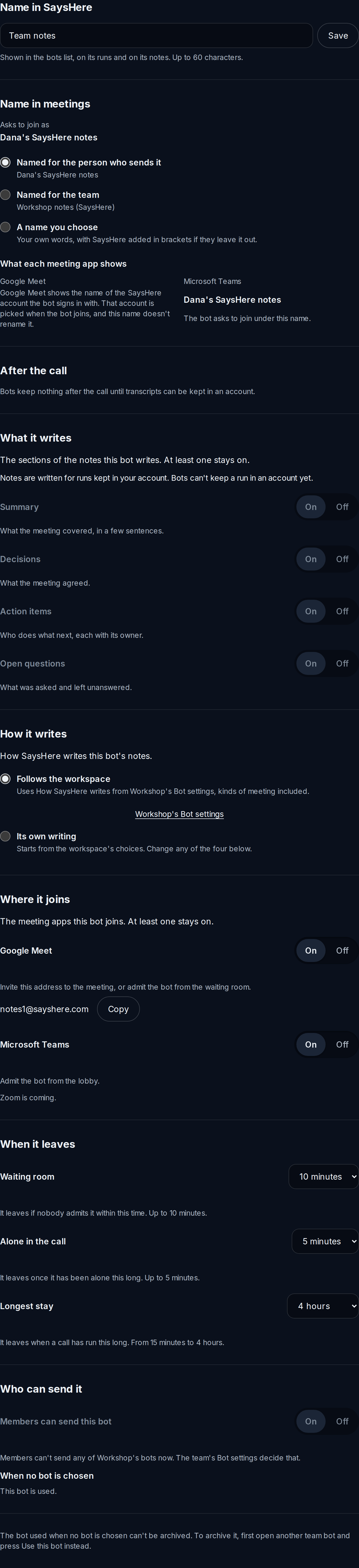
A team bot's settings, from its name down.Captured from the app on 4 November 2026.
- 1
Change a part, such as Name in meetings.
The pane says Saving, then Saved.


A team bot's settings, from its name down.Captured from the app on 4 November 2026.
A bot's time
Time shows This month: the time the bot used, under Used by this bot, and the time held for a bot under way, set apart from the time left while that bot is in a call. Bot time belongs to the workspace and is shared by everyone who sends a bot in it. In your own workspace, Buy 10 hours adds time while buying bot time is offered.
- 1
Press Time on a bot's page.
It shows This month and the workspace's Bot time.
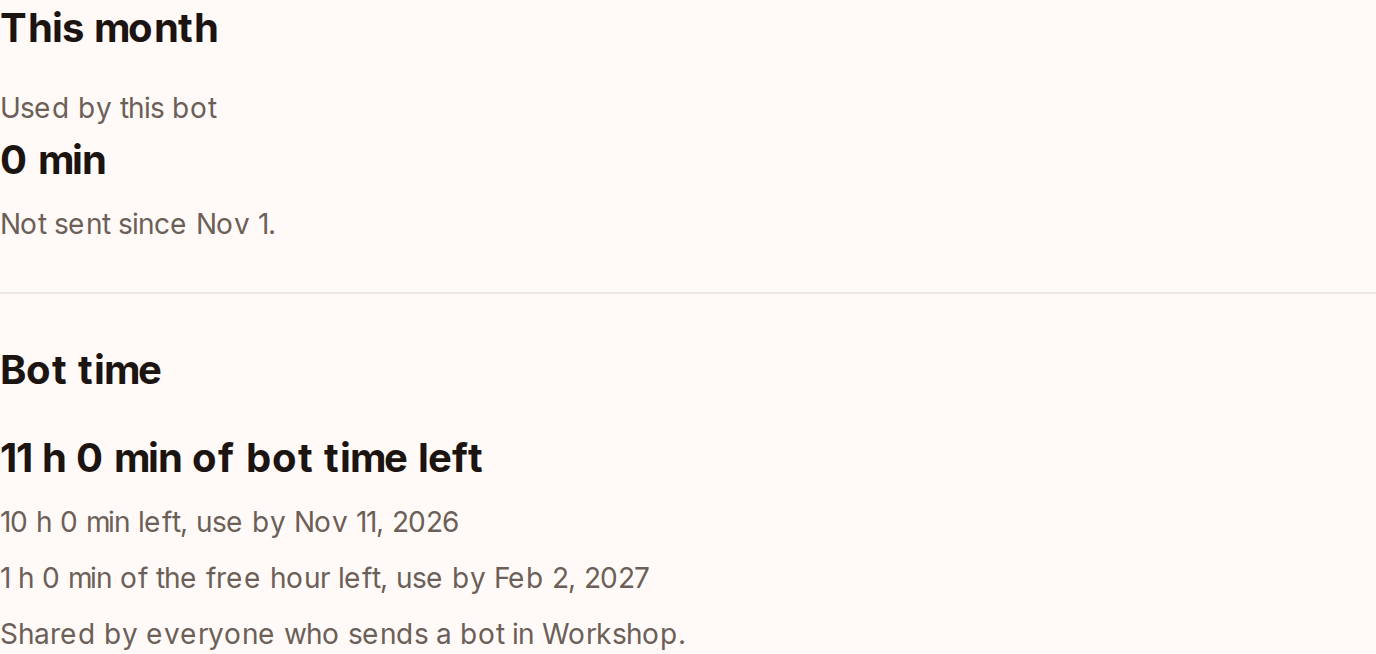
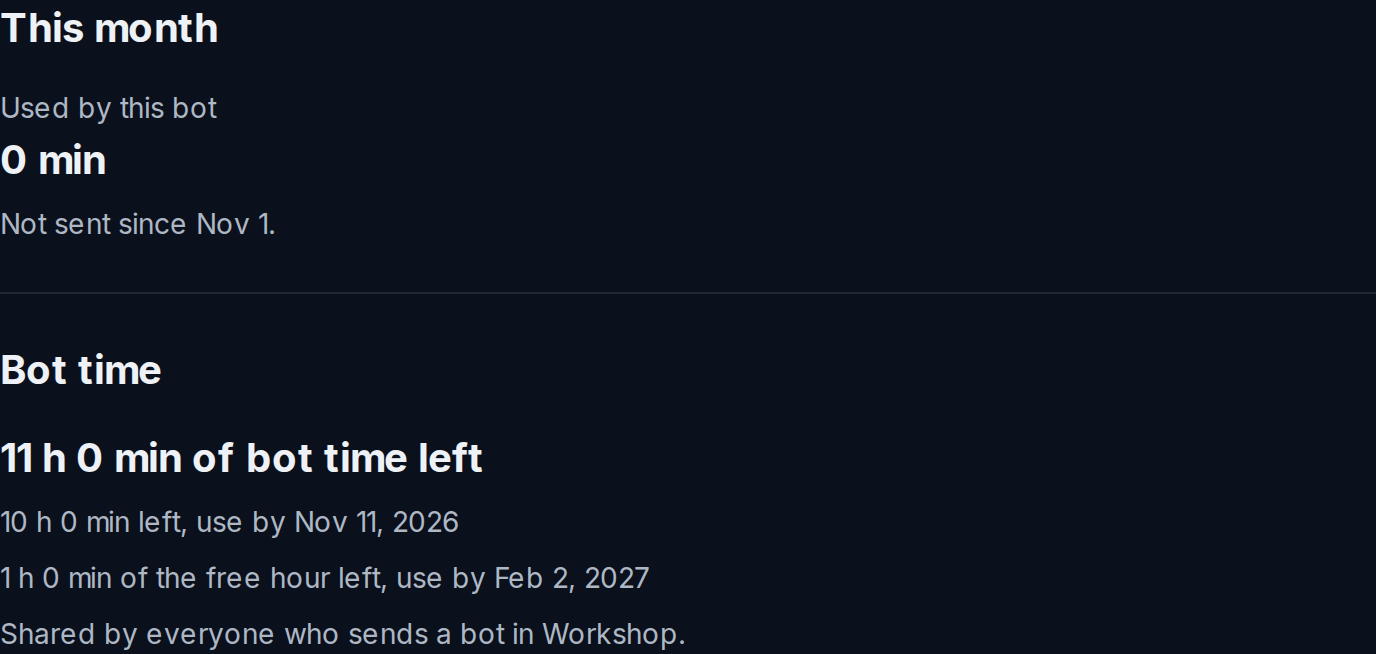
A team bot's Time tab.Captured from the app on 4 November 2026.
- 1
Press Time on a bot's page.
It shows This month and the workspace's Bot time.
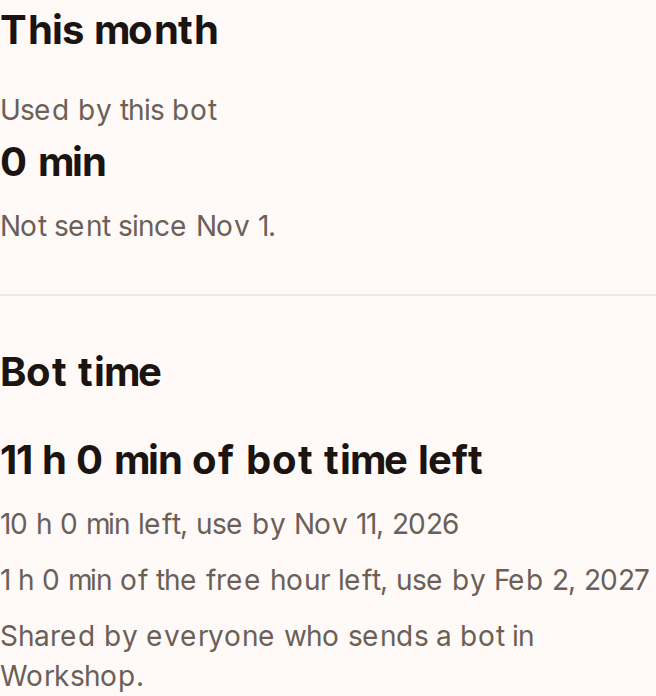
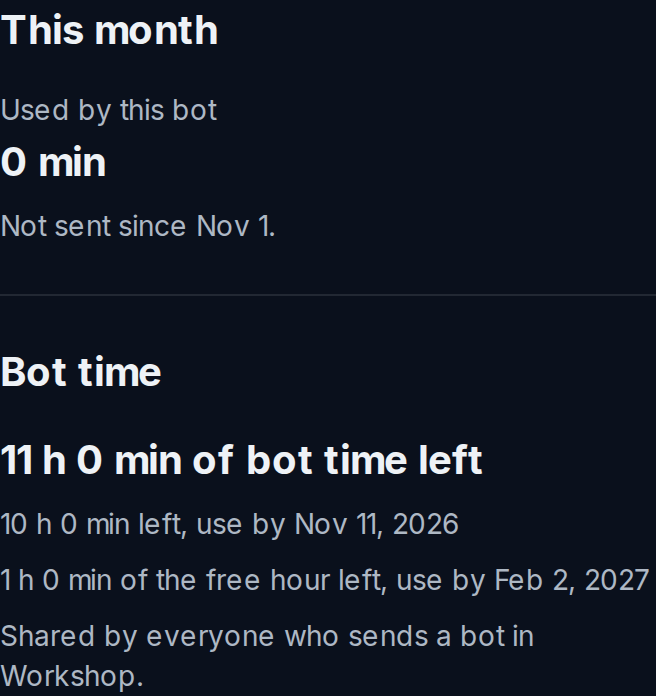
A team bot's Time tab.Captured from the app on 4 November 2026.
The team's Bot settings
Manage bots opens the bots list. Members can make their own bots: Each member can have up to 5 bots of their own. Turning it off stops new ones, and the ones they have still work. Members can send the team's and projects' bots: When it's off, only the Owner and Admins send them, and bots a Member booked for later don't join. Members always send their own bots. How SaysHere writes sets how SaysHere writes notes, summaries and answers for the team, and a bot with its own writing uses that instead. Bot time shows the team's time, and This month, by bot each bot's share. The Owner and Admins change these settings.
- 1
In the team's settings, open Bot.
It shows Manage bots, the two switches, How SaysHere writes and Bot time.
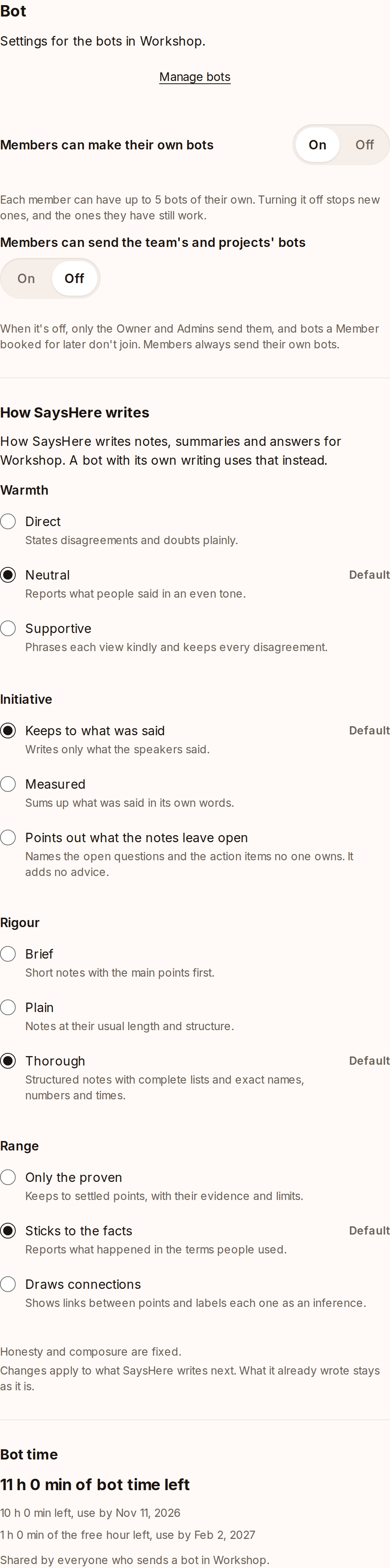
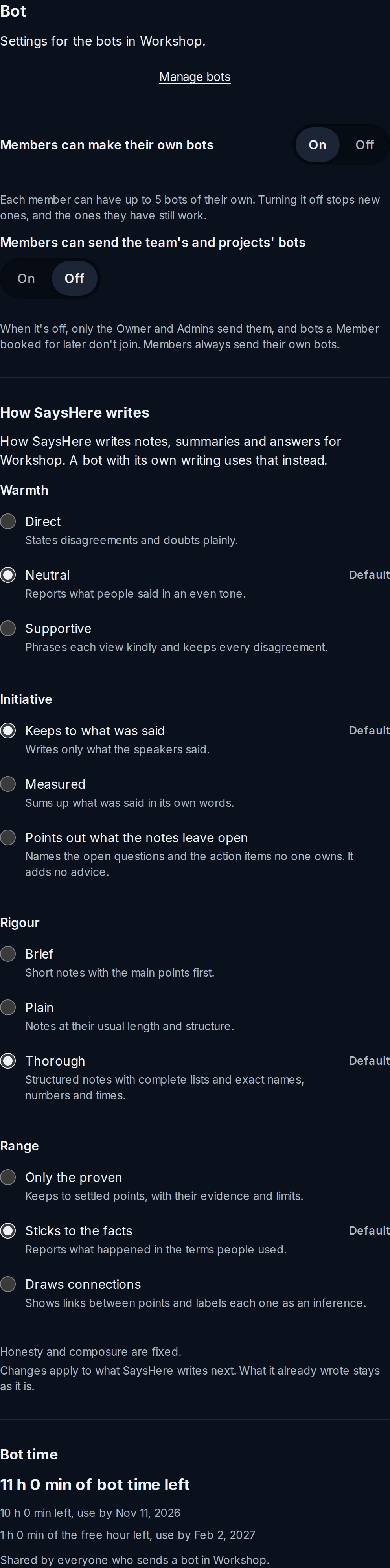
A team's Bot settings, seen by its Owner.Captured from the app on 4 November 2026.
- 1
In the team's settings, open Bot.
It shows Manage bots, the two switches, How SaysHere writes and Bot time.


A team's Bot settings, seen by its Owner.Captured from the app on 4 November 2026.
SaysHere stop with several bots
Anyone in the call can type SaysHere stop in the meeting's chat. It ends every SaysHere bot in that chat, from this workspace or another, and each one leaves and deletes everything it took. A message stops a bot only when it is the phrase alone, with punctuation after it allowed, so a longer message that holds the phrase stops none. Every bot's notice says what to type.
Where a run's notes go
A kept run of a team bot or of a member's own bot goes into the account of the person who sent the bot. A kept run of a project bot stays the sender's, filed into its project, where the project's people read it. The Owner and Admins see the settings of a member's own bot, never its transcripts.